
 Folder Synchronization allows the users to get their folder structure from the source email system into their archive mailboxes in the MailStore Cloud archive. This can be user mailboxes or shared mailboxes. It is not useful for journal mailboxes. The typical setup should be Archiving via Journaling and then a Folder Synchronization on actual user mailboxes. This is the ideal way to legally comply archiving and the folder structure that is needed/expected by users when looking into their archived mailboxes.
Folder Synchronization can be done from mailboxes of public cloud services such as Microsoft 365 or Google Workspace, email servers such as Microsoft Exchange, or any Email Server providing Emails by IMAP. POP3 does not have a concept of folders so isn’t assisted for the synchronization task here. Only archiving from POP3 is possible. The actual folder synchronization task is then later executed by a schedule.
Folder Synchronizations
Folder Synchronization Profiles page has various features that can be used to create, edit, and manage your folder synchronization profiles.
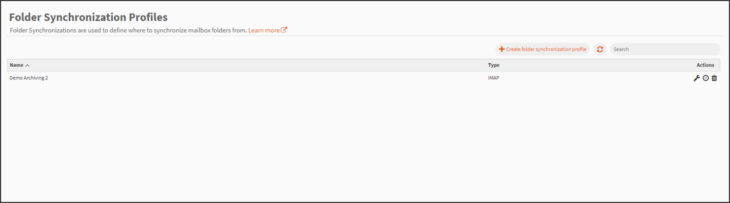
- Create folder synchronization profile – Creates a new folder synchronization profile from the beginning.
- Refresh – The refresh icon can be utilized if needed to refresh the page.
- Search – Search is an implicit search over Name and ID:
- Name is a case insensitive “includes” search.
- ID is a case insensitive “equals” search.
- Actions
- Edit – To edit the selected Folder Synchronization Profile.
- Create Schedule – Define a schedule for execution of this folder synchronization profile. Learn how to create a schedule here.
- Delete – Only possible if not in use by a schedule.
Common Properties for all profiles
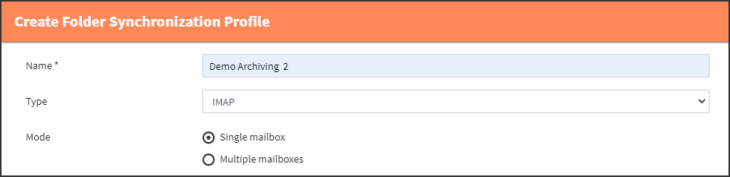

- Name
- The user should select a unique name that is relevant to the profile.
- The name can be edited later.
- Type
- The Email Server to synchronize the folder structure from.
- This includes IMAP, Exchange Server, Microsoft 365, and Google Workspace.
- This cannot be changed when editing.
- Mode
- Single or Multiple Mailboxes.
Note: Microsoft Outlook.com is only usable for Single Mailbox Folder Synchronization.
- Single or Multiple Mailboxes.
- Delete in Source Mailbox
- Never delete
- Immediate after folder synchronization
- Deletion of the mail on the server only after successful syncing
- If archiving date older than …
- Deletion of the mail on the mail server if the archiving in MailStore Cloud has happened before the configured listed timespan.
- Allowed spans are in days, weeks, months, and years.
- If message older then …
- Deletion of the mail on the mail server if the mail is older then configured listed timespan.
- Allowed spans are in days, weeks, months, and years.
Test Connection
When all mandatory properties are filled (this includes also the type specific properties, see next section) you can click on the ‘Test Connection’ button to test the given configuration. A new dialog will open and show the result of the connection test.
In case of a ‘Single mailbox’ configuration the test will be executed immediately. In case of a ‘Multiple mailbox’ configuration you must first choose a specific mailbox to be tested.
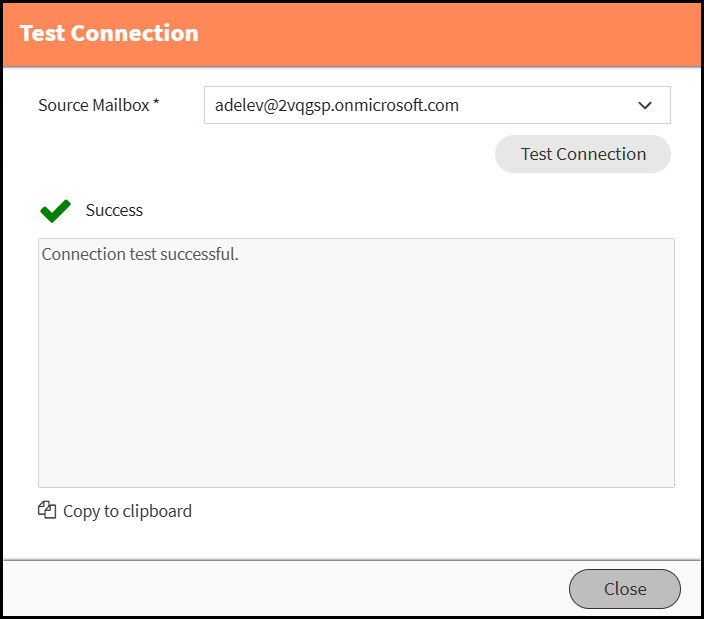
As the connection test directly communicates with your mail service, you may receive technical error messages in case of a misconfiguration. MailStore Cloud cannot provide localized error messages for all mail services as they are highly individual. Typical error messages could be for example a misspelling of tenant information, a wrong server or invalid credentials.
With the ‘Copy to clipboard’ button you can copy the result of the connection test in case you need further information and want to contact the support.
Individual properties according to the Mode selection
- Single Mailbox Mode:
- Mailbox – Specifies the mailbox on the mail server, usually by its primary mail address.
- Multiple Mailbox Mode:
- Directory Service – Specifies the directory services that has created mailboxes that should now be archived from. Please see the Directory Services article for more information.
- Synchronize Users – When set the selected directory service will be executed by the scheduler before this Folder Synchronization Profile will be executed. The executed directory service can be seen as individual process in the Process log after execution.
Individual properties according to the Type selection
- Server Name
- Only used for IMAP and Exchange.
- Without protocol and port.
- Only used for IMAP and Exchange.
- Port
- Only used for IMAP.
- Must be a valid number between 0 and 65535.
- Protocol
- Only used for IMAP.
- IMAP-SSL or IMAP-TLS.
- Only used for IMAP.
- Credentials (See Secrets article for more information)
- For IMAP, Exchange.
- Basic Authentication (Username/Password).
- For Microsoft 365.
- Certificate Authentication.
- For Google.
- Google Workspace specific Authentication.
- For IMAP, Exchange.
Timeout
- Only for IMAP, Exchange.
- Must be a valid number between 0 and 2147483. If value is left empty, the default timeout will apply.
Source Mailbox
- Only appears in Single Mailbox mode for Microsoft 365 and Google Workspace Types.
- Used when either:
- Mailbox name differs from the used Credentials UPN – Username.
- When using impersonation for syncing.
Microsoft 365 specific properties
- Should be taken from Tenants Microsoft Entra ID page.
- Application ID
- Directory ID
Microsoft Outlook.com Connection Status
- Click on the button ‘Authorize’ to authorize MailStore Cloud to read your Microsoft Otlook.com emails.
- You will be redirected to your mail provider to give consent for MailStore Cloud.
- After giving consent, your source mailbox will automatically be selected (Microsoft Outlook.com profiles are always single mailbox profiles).
- If you want to change the source mailbox by choosing another account, or if the connection was deleted in your email provider, you can click on ‘Reauthorize’.
- Folder synchronization for mailboxes from other Microsoft domains such as live.com, hotmail.com or msn.com is also possible with this profile. For folder synchronization for single Microsoft 365 mailboxes by an administrator, please use the corresponding MS365 folder synchronization profile.