
Admin Access: Sending Mails
 The “Sending Mails” feature allows MailStore Cloud to send mails through an MS365 mailbox configured by the customer. This is currently used for the “Resend mail” functionality in the Web Access.
Sending Mails
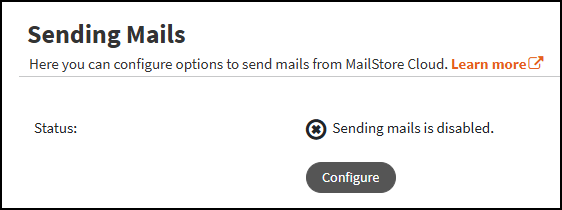
The Sending Mails page displays the status of the feature. A dialog can be opened to configure the necessary properties. By default, the feature is disabled.
Configure Sending Mails
- Type:
- None – Deactivates this feature
- Microsoft 365 – Use a mailbox in your MS365 tenant for sending mails. See below for further information about this configuration type.
Important: When activating or deactivating the feature, it can take up to five minutes until this is reflected in the Web Access for already logged in users.
Configure for Microsoft 365
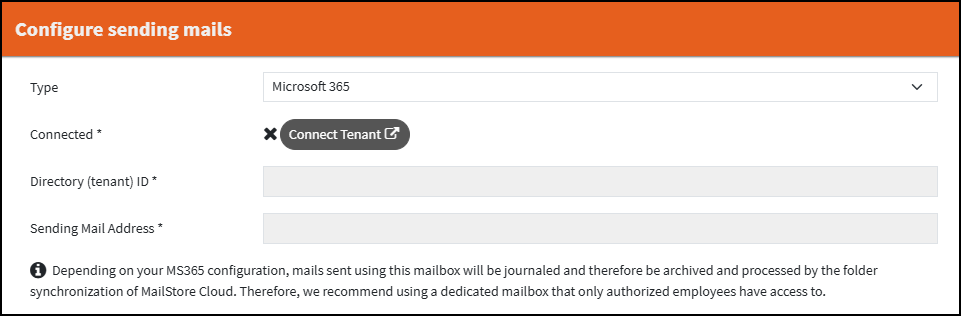
- Connect Tenant – Opens the Microsoft 365 Login Dialog in a new tab and requires login with a Microsoft account, as well as the admin consent for the MailStore Cloud App to connect to the tenant. The dialog waits for the redirect back from the Microsoft 365 Portal.
- Once the tenant is connected, admin consent has been granted in the Microsoft tenant, even if the setup within MailStore Cloud is not completed!
- To prevent the setup of unauthorized tenant connections for tenants that have already granted consent for the MailStore Cloud App in another organization, the initial setup also verifies the consent to have been given by an admin of the tenant, which requires the redirect to another confirmation within the Microsoft 365 Portal directly after logging in.
- Directory (tenant) ID – The Directory (tenant) ID, copied from the Microsoft Entra ID portal.
- Sending Mail Address – Select the MS365 mailbox that will be used for sending mails.
- Important: Be sure to read the warning regarding journaling of mails sent using this mailbox.
Throttling
Microsoft imposes several limits on sending mails, which are out of control of MailStore Cloud.
- Outlook service limits for Graph API: https://learn.microsoft.com/en-us/graph/throttling-limits#outlook-service-limits
- Each mail sent equals one POST request to the Graph API.
- Exchange online limits: https://learn.microsoft.com/en-us/office365/servicedescriptions/exchange-online-service-description/exchange-online-limits#sending-limits-1